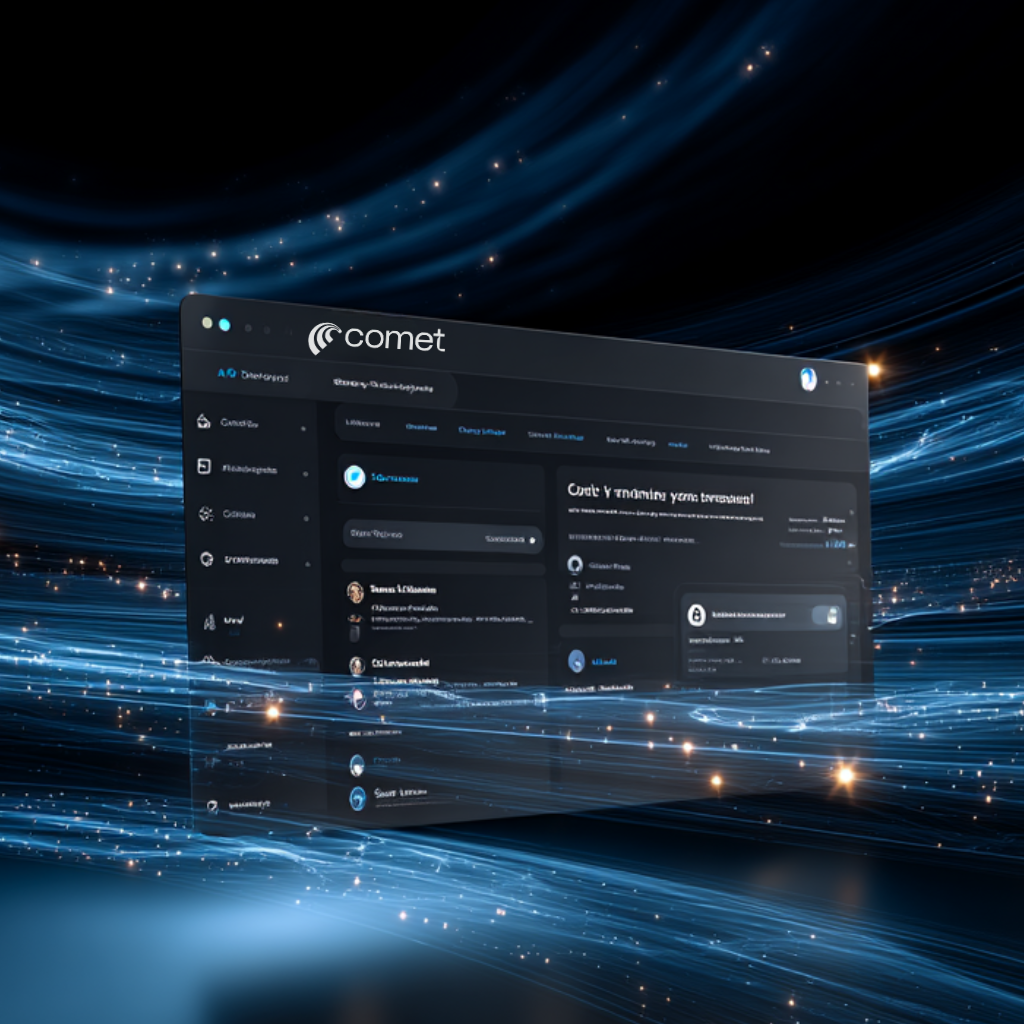
I’ll be straight with you – I’ve been coding professionally for about 8 years now, and I’ve tried pretty much every browser and development tool that promises to make my life easier. So when I heard about Comet Browser with its “AI agent mode” and coding features, I was skeptical but intrigued enough to give it a shot.
Getting Started: Surprisingly Smooth
Setting up Comet was honestly the easiest browser migration I’ve ever done. It imported everything from my Chrome setup – bookmarks, saved passwords, extensions, the works in literally 30 seconds. As someone who’s accumulated hundreds of bookmarks and relies on about 15 different extensions for development work, this was huge for me. The interface immediately felt familiar since it’s built on Chromium, but cleaner somehow. The dark mode actually looks good, unlike Chrome’s half-hearted attempt.
The AI Assistant: Game-Changer or Gimmick?
Here’s where things get interesting. The Comet Assistant isn’t just another ChatGPT sidebar, it actually understands what’s happening in your browser tabs. I was working on a React project and had documentation open in three different tabs. Instead of constantly switching between them, I could just ask the assistant: “Compare the use State examples from all my open React docs tabs and show me the best practice for managing form state.” It actually pulled information from all three tabs and gave me a consolidated answer with citations. That saved me probably 10 minutes of tab-juggling and note-taking.
Agent Mode: The Real Deal
The agentic browsing feature is where Comet really shines, but also where it shows its limitations. I asked it to help me research JavaScript testing frameworks by comparing Jest, Vitest, and Cypress. It went ahead and: Opened new tabs for each framework’s documentation, Pulled key features and performance metrics, Created a comparison table with pros and cons, Even checked GitHub stars and recent activity
This felt like having a junior developer do research for me. But when I tried to get it to actually fill out a contact form on a client’s website for testing purposes, it struggled and eventually gave up. The automation works great for information gathering, not so much for complex interactions.
Coding Features: Mixed Bag
The built-in terminal and code preview features are nice touches, but honestly, they’re not revolutionary if you’re already using VS Code or similar IDEs. Where Comet does excel is in research and documentation tasks that happen in the browser.
I spent a morning debugging a CSS grid issue, and instead of opening 15 tabs with Stack Overflow answers, I just described my problem to the assistant. It found relevant solutions, explained the concepts, and even suggested modern alternatives I hadn’t considered.
Voice Mode: Surprisingly Useful
I was initially skeptical about the voice features, but they grew on me. While debugging, I could say “summarize this MDN article about flexbox while I keep coding” and get the key points without losing focus. It’s not perfect – sometimes it misunderstands technical terms – but for quick research, it’s genuinely helpful.
The Downsides: Let’s Be Real
First, the price. You need a $200/month Perplexity Max subscription to access Comet. That’s steep, especially when Chrome is free and does 90% of what I need.
Second, it’s still rough around the edges. I experienced occasional crashes, some extensions didn’t work perfectly, and the AI sometimes gave outdated information. For a developer who needs reliability, these hiccups are frustrating.
Third, the constant notifications asking me to make it my default browser got annoying fast. I get it, you want adoption, but let me decide.
The Verdict: Promising but Pricey
After three weeks of using Comet as my primary browser, I’m genuinely impressed by the potential. The AI-powered research capabilities have changed how I approach documentation and problem-solving. Instead of opening 20 tabs and losing track of context, I can have focused conversations about my work.
But is it worth $200/month? For most developers, probably not yet. The features are cool, but Chrome with some good extensions gets you 80% of the way there for free.
However, if you’re someone who spends hours daily researching documentation, comparing tools, or doing technical writing, Comet might actually save you enough time to justify the cost. The cross-tab intelligence alone has probably saved me 2-3 hours per week.
Who Should Try It?
Technical writers and researchers who live in browser tabs
Developers working with unfamiliar technologies frequently
Anyone who finds themselves constantly switching between documentation sites
Early adopters who don’t mind paying premium for cutting-edge features
Who Should Wait?
Budget-conscious developers (most of us)
Anyone who needs rock-solid stability for client work
Developers happy with their current Chrome + extensions setup
Comet feels like a glimpse into the future of browsing – where your browser becomes an intelligent research partner rather than just a document viewer. But like most bleeding-edge tech, it’s expensive and imperfect. Give it another year of development and maybe a more reasonable pricing tier, and I think it could genuinely disrupt how we work online.
For now, I’m keeping both Chrome and Comet installed. Chrome for reliability, Comet for those research-heavy days when I need an AI co-pilot